Posts

Showing posts with the label SharePoint Online

Review of Microsoft 365 Learning Pathways

Image
I've recently been doing a series of reviews of different tools available to support organisations in their adoption efforts.  In this post I will review Microsoft 365 Learning Pathways. This is one I have been planning to write up for a while.  I've been able to use the solution a handful of times this year and have seen the benefit of provisioning it.  What is Microsoft 365 Learning Pathways? Microsoft 365 Learning Pathways, is a customisable SharePoint Online communication site that is provisioned into your tenant with ready made resources for supporting end users using Microsoft 365. Once deployed you can customise the settings and create training playlists for your users.   There is also the ability to integrate with Teams via the app bar. If you're looking to support your adoption efforts and provide your users with access to information and help on Microsoft 365 products, whether it's Excel or Microsoft Teams the site has videos and guides to support....


SharePoint Site Design: Creating and deploying

Image
In my first post: SharePoint Site Design: An Introduction , I gave you a brief overview on site designs and what they can do. In this post I want to show you how to get started building a simple design that you could add to an environment.  Creating your Site Script  To get started take a look at the Site design JSON schema on Microsoft Docs. From here you copy the overall JSON structure into your script. Once inserted to your script it will look like the below. {   "$schema": "schema.json",   "actions": [     ...     <one or more verb actions>     ...   ],   "bindata": { },   "version": 1 } The yellow highlights text that can be removed and replaced with the actions you want to add to your script. The  Site design JSON schema  on Microsoft Docs provides you with example JSON, which you can copy and paste into your script to add a specific actions between the two square brackets ([ ]). The text I've highli...

SharePoint Site Design: An Introduction

Image
This is one of those posts I've been wanting to do for over a year.  When I first started looking at SharePoint site design I found it challenging to get started. I couldn't find the guidance anywhere that would help me understand it. As a result each time I looked at SharePoint Site Designs it felt a bit like black magic!  I understood and could see the benefits of being able to use site designs to create sites with predefined elements and automation of actions, but the actual building of the site design and scripts seemed shrouded in mystery. I searched across the internet looking for guidance on how to create and implement the designs but of the material I found most was written in a way that I found hard to follow as a beginner in this area.  My aim in this post is to share what I have learnt and help you get started. To make this subject more manageable to digest I have split it into separate posts: Introduction to SharePoint site design  Create and deployi...

Creating a new site theme in SharePoint Online

Image
SharePoint Online Site Themes: SharePoint comes with a number ready made out of the box themes that you can apply to your SharePoint site(s). The themes can transform your site to give it a more unique feel. You can change the theme by navigating to the Settings (Cog) > Change the look > Theme . Once there you will be presented with the available themes. More recently you are able to customise the out of the box themes. At the time of Although this allows you to customise existing themes you may not find the colours that match your branding.  Often organisations want to use there own brand colours to personalise their SharePoint sites. With a few steps it is possible to create and import your own theme(s) in to your SharePoint environment. You can then utilise the theme(s) by adding them manually to sites or in your site designs. Benefits of having a custom site theme You or other site owners can switch to the company branded theme once added to your tenant It will be availab...

Update the request access email in multiple SharePoint Online sites

Image
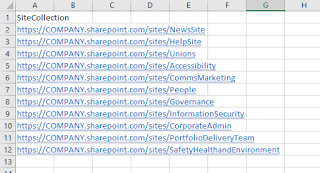
Background Recently I had a request to update 50 plus SharePoint Online sites with a group email address so that this mailbox received all site access requests.  This group was being used as the owners of the SharePoint sites and as it was a group they had not been receiving the access requests. As a result we decided we wanted to forward these requests to the group mailbox.   Using the resources from Microsoft Docs I was able to set the request access email in a SharePoint site, using PowerShell.   Using the guidance command provided in Microsoft Docs I was able to create a PowerShell script and added a step to repeat this on multiple sites by importing a spreadsheet (CSV) with the site addresses. If had done this manually it would have taken around a day to go to each site and set. Using the script in a matter of minutes the job was done and I was able to focus on other tasks.  I did a few random spot checks to ensure it worked.  What you need to get...

SharePoint Online creating an organisation news site

Image
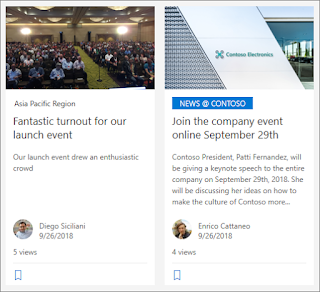
A SharePoint admin can now make a SharePoint Online site an organisation news site . This gives news post created in the SharePoint site a visual marker and makes them appear on the SharePoint start page (SharePoint App) for users across the business.  At the time of writing, this is achieved via a simple PowerShell script. Below is an example of the script I have been using. PowerShell Script # Sets the specified site as an Organisational News site. Update the URLs below. $adminSiteUrl = " https://XXXXX-admin.sharepoint.com " $newsSiteUrl = " https://XXXXX.sharepoint.com/sites/SITENAME " # Connection to tenant Connect-SPOService $adminSiteUrl -Credential $cred # Set specified site as organisational news site Set-SPOOrgNewsSite -OrgNewsSiteUrl $newsSiteUrl # Confirms process completed and specified site has been set as organisational news site Write-Host "Organisational News site has been set" -ForegroundColor Green What do you need to get started? Ensure ...

SharePoint Online Home Sites

A new feature released by Microsoft in June 2020 allows a SharePoint Admin to turn the company's main internal landing site as a new home site. This is achieved at the time of writing  by running a simple PowerShell script against the desired site. Once done your SharePoint Communication site will be at the heart of your organisation and putting it one click away for users. I've had the opportunity to use this new feature a couple of times now and these are some notes to help you if you want to replicate in your environment or just understand what the home site is all about. While I've been getting used to it, I've found the Microsoft information useful in guiding me. What you need? The following PowerShell modules are required to run the scripts: Microsoft.Online.SharePoint,PowerShell SharePointPnPPowerShellOnline Users repeating these steps require SharePoint Admin rights to successfully run the commands on a site. Resources Official Microsoft guidance on setting up t...

Creating a SharePoint Online Organisation Asset Library

Image
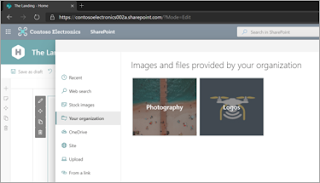
Creating a shared library for branded images or templates has been around for many years but getting the image or file into your SharePoint site has been a challenge at times. You would find owners and editors downloading a copy from the source and then uploading to their SharePoint site(s). This then created issues where images or files change and sites are no longer using the "one source of truth". The workaround was to use a link which could come with its own issues. Microsoft have recently released the ability to create a organisation asset library that owners and editors from across the business can access.  At the time of writing this is achieved by running a PowerShell script to set a library as an organisation wide asset library. PowerShell script Below is the simple script I've been using to set an organisation asset library. Replace the red text with your URLs to run the script. # Amend the below addresses $adminSiteUrl = " https://XXXXX-admin.sharepoint.co...