Posts

Create a GIF (animated image) with PowerPoint

Image
Background There have been a number of occasions where I've needed to create images and animated images for different SharePoint related projects.  I've used a number of tools in the past with varying success.  More recently I've been using PowerPoint to create custom images, which has saved me time and allowed me to do what I wanted without buying new tools or using free ones with adds. Although I had been using PowerPoint to create images it was only recently I discovered a new feature in PowerPoint that allows you to create GIFs "Graphic Interchange Format". GIFs are animated or static images.  There could be many reasons you want to create an animated image most common would be to display an action with moving images rather than creating a video. Another reason might just be that you want to jazz up your SharePoint page or presentation.  Here's an example of a GIF I created in PowerPoint. Steps to create your GIF To create an animated image follow these 12...

Intranet adoption survey guidance

Image
Intranet adoption survey guidance Background  Adoption is an important area that often gets overlooked, in this post I discuss some guidance on reaching out to your users after launching your intranet. Connecting with your users and getting their opinion on the new tool will aid towards its adoption. Form their feedback you can assess what's working and what needs some work. Creating a survey as part of your adoption work is often not given the time or effort to be as useful a tool as it could be. Spend time developing a survey that will yield actionable results rather than gain responses that just tells you the users like or dislike the tool. Getting responses that have detail will help you evolve the intranet into a tool that continues works for users and improve adoption. Planning the survey When writing your survey consider what it is you want to discover from your respondents.  Are you trying to identify why adoption is low?  Or to identify areas of th...

Update the request access email in multiple SharePoint Online sites

Image
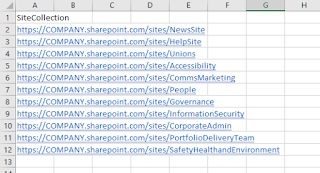
Background Recently I had a request to update 50 plus SharePoint Online sites with a group email address so that this mailbox received all site access requests.  This group was being used as the owners of the SharePoint sites and as it was a group they had not been receiving the access requests. As a result we decided we wanted to forward these requests to the group mailbox.   Using the resources from Microsoft Docs I was able to set the request access email in a SharePoint site, using PowerShell.   Using the guidance command provided in Microsoft Docs I was able to create a PowerShell script and added a step to repeat this on multiple sites by importing a spreadsheet (CSV) with the site addresses. If had done this manually it would have taken around a day to go to each site and set. Using the script in a matter of minutes the job was done and I was able to focus on other tasks.  I did a few random spot checks to ensure it worked.  What you need to get...

SharePoint Online creating an organisation news site

Image
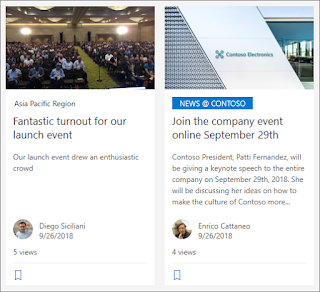
A SharePoint admin can now make a SharePoint Online site an organisation news site . This gives news post created in the SharePoint site a visual marker and makes them appear on the SharePoint start page (SharePoint App) for users across the business.  At the time of writing, this is achieved via a simple PowerShell script. Below is an example of the script I have been using. PowerShell Script # Sets the specified site as an Organisational News site. Update the URLs below. $adminSiteUrl = " https://XXXXX-admin.sharepoint.com " $newsSiteUrl = " https://XXXXX.sharepoint.com/sites/SITENAME " # Connection to tenant Connect-SPOService $adminSiteUrl -Credential $cred # Set specified site as organisational news site Set-SPOOrgNewsSite -OrgNewsSiteUrl $newsSiteUrl # Confirms process completed and specified site has been set as organisational news site Write-Host "Organisational News site has been set" -ForegroundColor Green What do you need to get started? Ensure ...

SharePoint Online Home Sites

A new feature released by Microsoft in June 2020 allows a SharePoint Admin to turn the company's main internal landing site as a new home site. This is achieved at the time of writing  by running a simple PowerShell script against the desired site. Once done your SharePoint Communication site will be at the heart of your organisation and putting it one click away for users. I've had the opportunity to use this new feature a couple of times now and these are some notes to help you if you want to replicate in your environment or just understand what the home site is all about. While I've been getting used to it, I've found the Microsoft information useful in guiding me. What you need? The following PowerShell modules are required to run the scripts: Microsoft.Online.SharePoint,PowerShell SharePointPnPPowerShellOnline Users repeating these steps require SharePoint Admin rights to successfully run the commands on a site. Resources Official Microsoft guidance on setting up t...

Creating a SharePoint Online Organisation Asset Library

Image
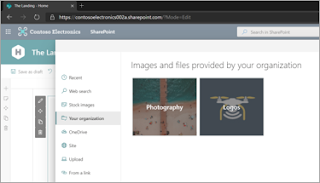
Creating a shared library for branded images or templates has been around for many years but getting the image or file into your SharePoint site has been a challenge at times. You would find owners and editors downloading a copy from the source and then uploading to their SharePoint site(s). This then created issues where images or files change and sites are no longer using the "one source of truth". The workaround was to use a link which could come with its own issues. Microsoft have recently released the ability to create a organisation asset library that owners and editors from across the business can access.  At the time of writing this is achieved by running a PowerShell script to set a library as an organisation wide asset library. PowerShell script Below is the simple script I've been using to set an organisation asset library. Replace the red text with your URLs to run the script. # Amend the below addresses $adminSiteUrl = " https://XXXXX-admin.sharepoint.co...